





 Today I thought I’d post a tip on how to get one of those cute little square pictures of yourself that show up with your comment in any blog or forum. Here’s mine!
“Why?” you’re asking. Because it’s FREE, really easy to do, and it’s so much nicer to see a face, or an image representing your personality, instead of a computer-generated icon or a blank spot alongside your comment.
What is a gravatar?
A gravatar, or globally recognized avatar, is quite simply an image that follows you from site to site appearing beside your name when you do things. Avatars help identify your posts on blogs and web forums, or on any site.
Here’s all you do:
- Visit http://en.gravatar.com and sign up – it’s free. All you need is your email address.
- Once you’ve signed up, you upload your avatar image by following the instructions to browse your hard drive and locate the image you want to use.
- Then use the little resize doo-hickey (that’s a technical term) to drag the arrows to select the area of the image you want to use for your gravatar. I used the entire image I uploaded because I’d already cropped and trimmed it in Photoshop. But you don’t have to do that, you can select any part of an image you upload.
- Soon after you’ll start seeing it on gravatar-enabled sites (like this one)!
- You can associate the image with multiple email addresses if you want to.
- You can also go back to your account and change your image any time you feel like it. Like if you get a better hairdo, for instance. Or a facelift.
Twitter Gravatar Tip
Note that this gravatar service does not apply to Twitter.
In Twitter, you simply go to your account Settings link, then click on the Picture tab. Then use the “Browse” button to search your hard drive and locate the image you want to use for your Twitter account. Best to use a 72 dpi image or Twitter seems to get confused.
Hope this tip helps!
|
.oOo. |
|
Enhance your Zentangle experience while supporting TanglePatterns: |
|
CURRENT EDITION! TanglePatterns.com TANGLE GUIDE, 2024 Edition |
|
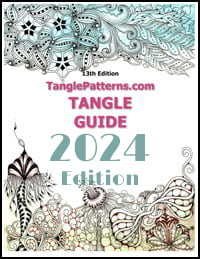 |
The 13th Edition of the TanglePatterns.com TANGLE GUIDE is an instant-download 109-page interactive digital eBook/PDF containing approximately 2,000 tangles on the site from May 2010 through December 31, 2023. It's a great resource and a must-have digital tool for using the site. Visit the STORE > E-BOOKS page and help keep TanglePatterns.com going by getting your copy now! |
|
"Linda, Thank you! I was relying on too few and getting stuck after 3 years of daily working with Zentangle. This has inspired me to ‘begin again’ with renewed excitement." ~ Barbara R. |
|
| See the BOOK REVIEWS page for more details on its features and view a sample page. Note: this is a digital product you download immediately when you place your order, nothing will be physically mailed to you. | |
| GIFT ORDERS FOR ANOTHER PERSON: To give the TANGLE GUIDE as a gift, visit this page to place your gift order. | |
| If you're new to Zentangle® and tangling, my TanglePatterns.com BEGINNER'S GUIDE TO ZENTANGLE is just what you need to get started. Also available en Français and en Español. | |
|
|
|
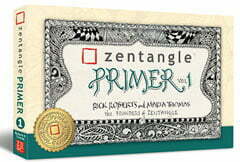 |
This is the only Zentangle book you'll ever need: the fabulous Zentangle PRIMER Vol 1. It's your CZT-in-a-book by the founders of Zentangle®. Visit the STORE tab on the top menu bar or click on the image. For more about the content and to read the rave reviews, visit the BOOK REVIEWS tab. |
| NEW! Now available in KINDLE format for $9.99. Spanish Edition here. Japanese Edition here. | |
| "Absolutely the best Zentangle Book yet! As an accomplished artist I used to think I did not need instruction on this art form. How wrong I was! My tangling improved by leaps and bounds after reading this book. If you think you have Zentangle down then you need this book more than ever!" ~ Kris H | |
|
|
|
|
.oOo. |
|
 November 14, 2010 |
  More like this:


Thank you so much for sharing this!
I just signed up & uploaded a pic. :o)
Now I can’t wait to see it work, lol.
Hugs and blessings,
Anita
The nectar of life is sweet only when shared with others. –Adam Mickiewicz
http://aseknc.blogspot.com/
http://asesaj.blogspot.com/
aseknc(at)gmail(dot)com
Yayyyyy!!! Hi Anita!
😀 *waves* Hi there! ?
That’s the site I used to make my gravatar. It was so easy! I used a quilt I made that I thought looked a lot like me when I had longer hair (and younger-looking skin and less weight!). I use it for everything now. Many times I can tell who is posting just from their gravatar. They become very recognized over time.
Thanks for that link. I’ve been wondering for a while how people were doing it. 🙂
Well this is a great tip!!! I really appreciate it…considering I just got a new hair do and facelift…now I can post a foto of myself:)
cool…thanks.
Glad you’re all finding this helpful, and it’s great to see your faces popping up around the site even if you haven’t commented here.
Hi, just want to say thanks for your great tips….. they seem endless.
ok I did my avatar, thanks for the info.
Thanks for that Linda! It’s so nice to be able to see people’s faces next to their comments… and I didn’t know how this was done until I read your post. Fantastic!! I’ve just set up my Gravatar account. So much wonderful info here! tanglepatterns.com – my number two fave website (zentangle.com is number one, but I’m sure you don’t mind that [grin]). Kit in Australia
Thanks Kit, great to see you too! Cheers, Linda
All the way around the globe in Australia – how about that?!! =)
Wow…I am new to Zentangles and Tangling….I am not sure I do it right but I certainly give it a go when I can..thanks for hte helpful in and allthe fun designs..my head is spinning with creations right now…lol..
hope to have a gravatar soon
ok have to see if I have one now
Welcome deedee, great to see you!
trying to figure this out re your instructions to add picture. will see if it worked????
Hi Barbara, it worked and it was easy too, right? Good to see you!
This was so helpful! Very nice to have something that will work for all those blogs (who can upload info to everything with an avatar). I like the way it does make us more familiar with one another… Especially ones that have actual photos – I like putting faces to names!
Thanks for the info!
You’re most welcome, and I see you! 🙂
Thank you, Linda! I have wondered for years how to do this! You truly are a wealth of knowledge & your tangle patterns site is the center of my zentangle world! I am most grateful for the time, energy & commitment you devote to keeping the site fresh & up-to-date.
Many thanks Jan, appreciate your lovely compliments. And thanks for this reminder about gravatars too, it would be so nice to see everyone’s photo in the comments!
merci je vais essayer de le faire car , j’aime bien associer un visage a un message, amitiés bonne journée
Google: thank you I will try to do because I like to put a face to a message, good day friendships
COUCOU J AI FAIT LE NÉCESSAIRE POUR L IMAGE J ESPÈRE QUE CELA VAS MARCHE AMITIÉS YVETTE DU MIDI FRANCE. tous en majuscule bises bonne semaines